
What’s new at trimet.org
We’ve made some big improvements to trimet.org, based on feedback from riders.
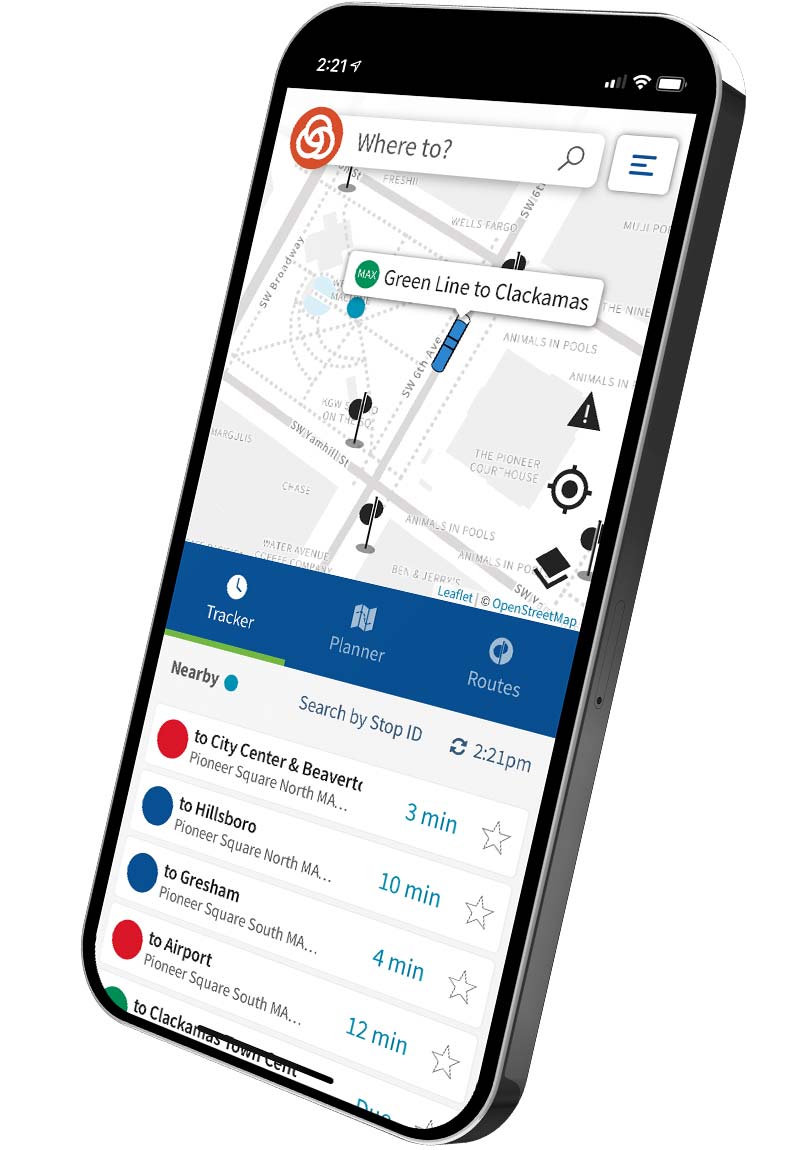
July 2026 Update
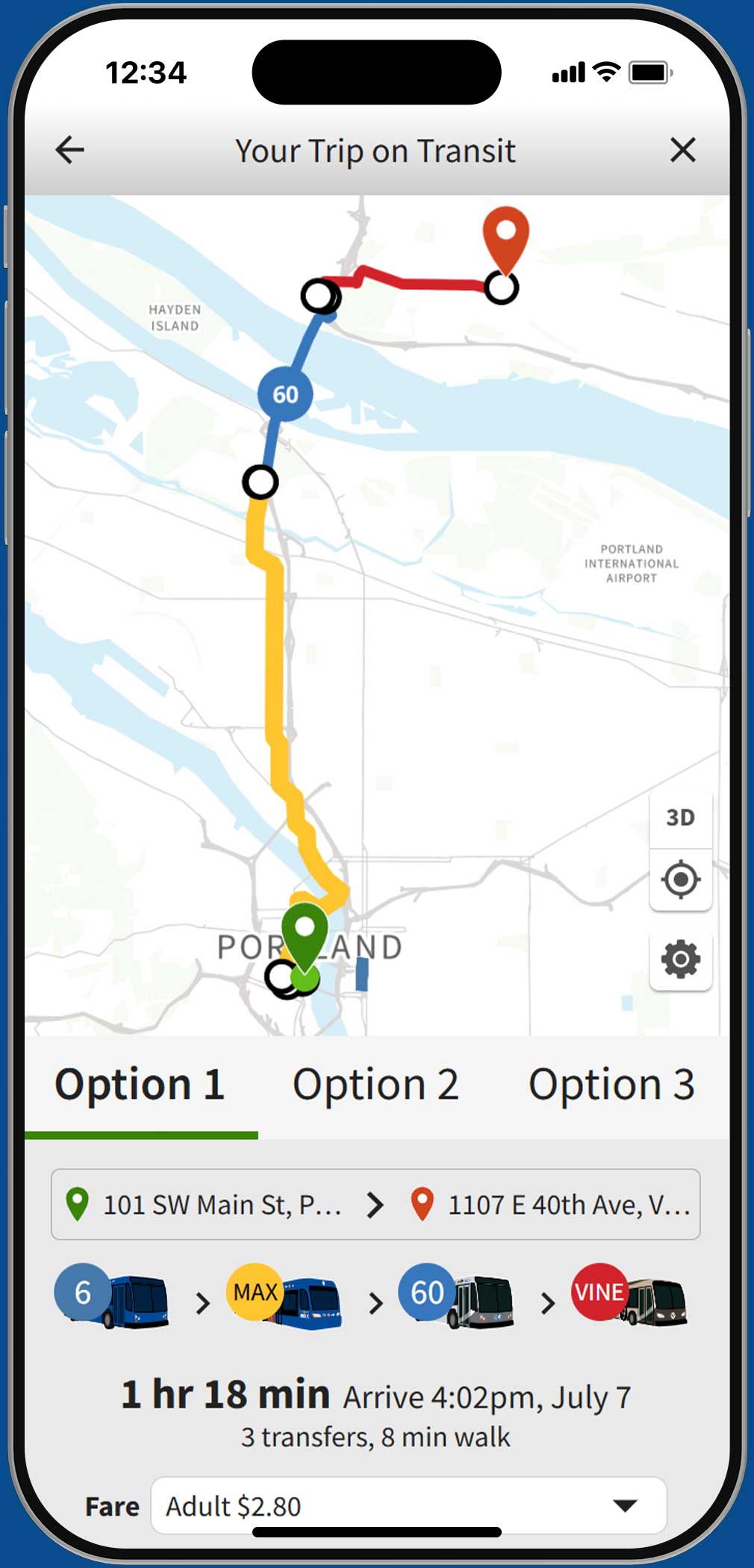
Welcome, C-TRAN!
Now, you can get step-by-step directions for most local transit services, including C-TRAN (Vancouver and Clark County, Washington), SMART (Wilsonville), SAM (Sandy), Washington Park Shuttle, Clackamas County Shuttles, Multnomah County ACCESS Shuttle and Ride Connection Shuttles.
- You can plan trips that combine any of these services, and view their routes and stops on the map.
- In Route View, you can filter the list of bus and rail routes by agency
- The Trip Planner now also supports “flex” (on-demand) routes, such as C-TRAN’s The Current.
- Note: Real-time vehicle locations are not yet available for non-TriMet services, but stay tuned!
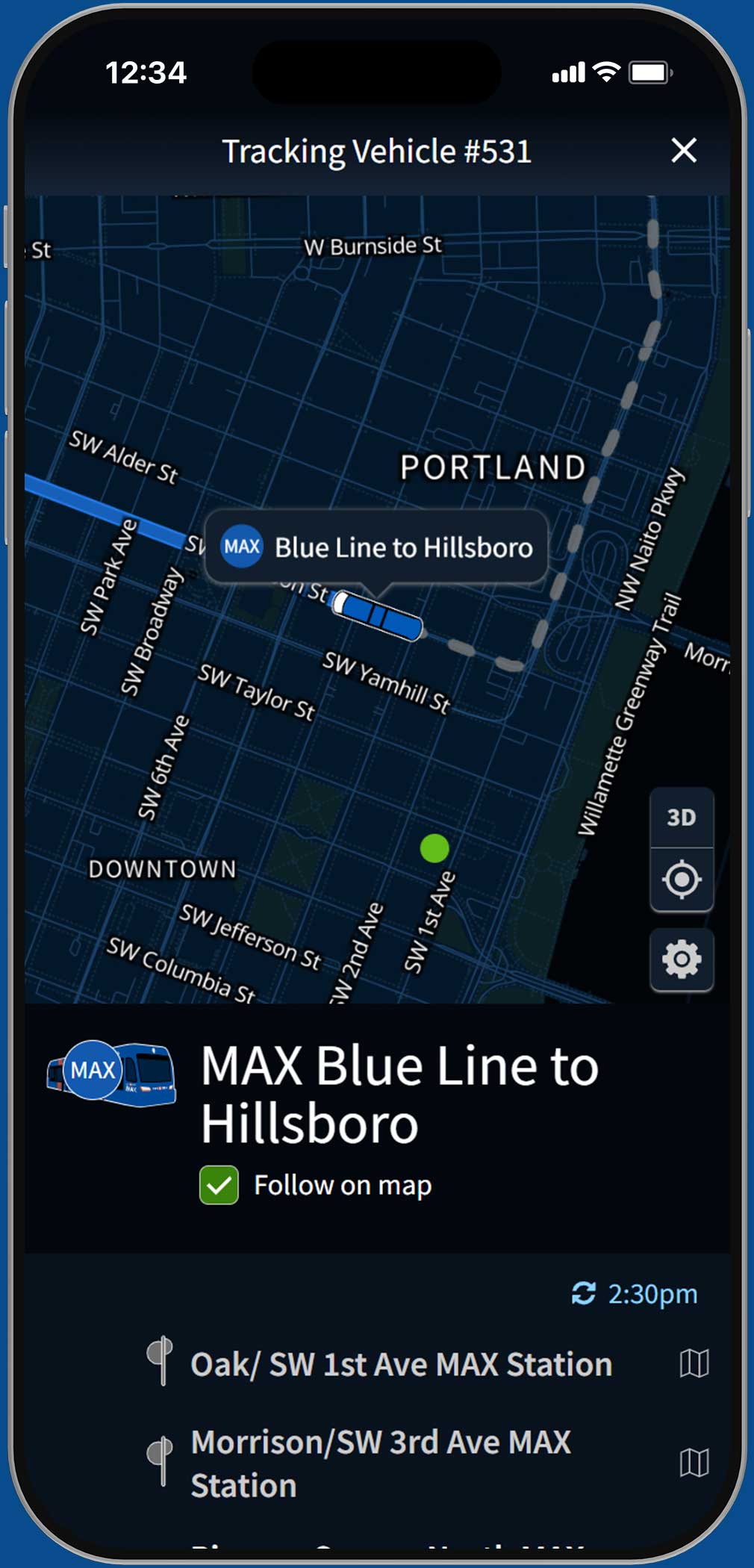
Dark mode is here
Easily our most-requested feature, dark mode is easier on your eyes in low light – reducing glare and eye strain.
- Tap the Settings icon in the lower-right corner of the map to access the dark/light mode options.
- In “Auto” mode, it changes automatically based on your device’s dark mode preferences.
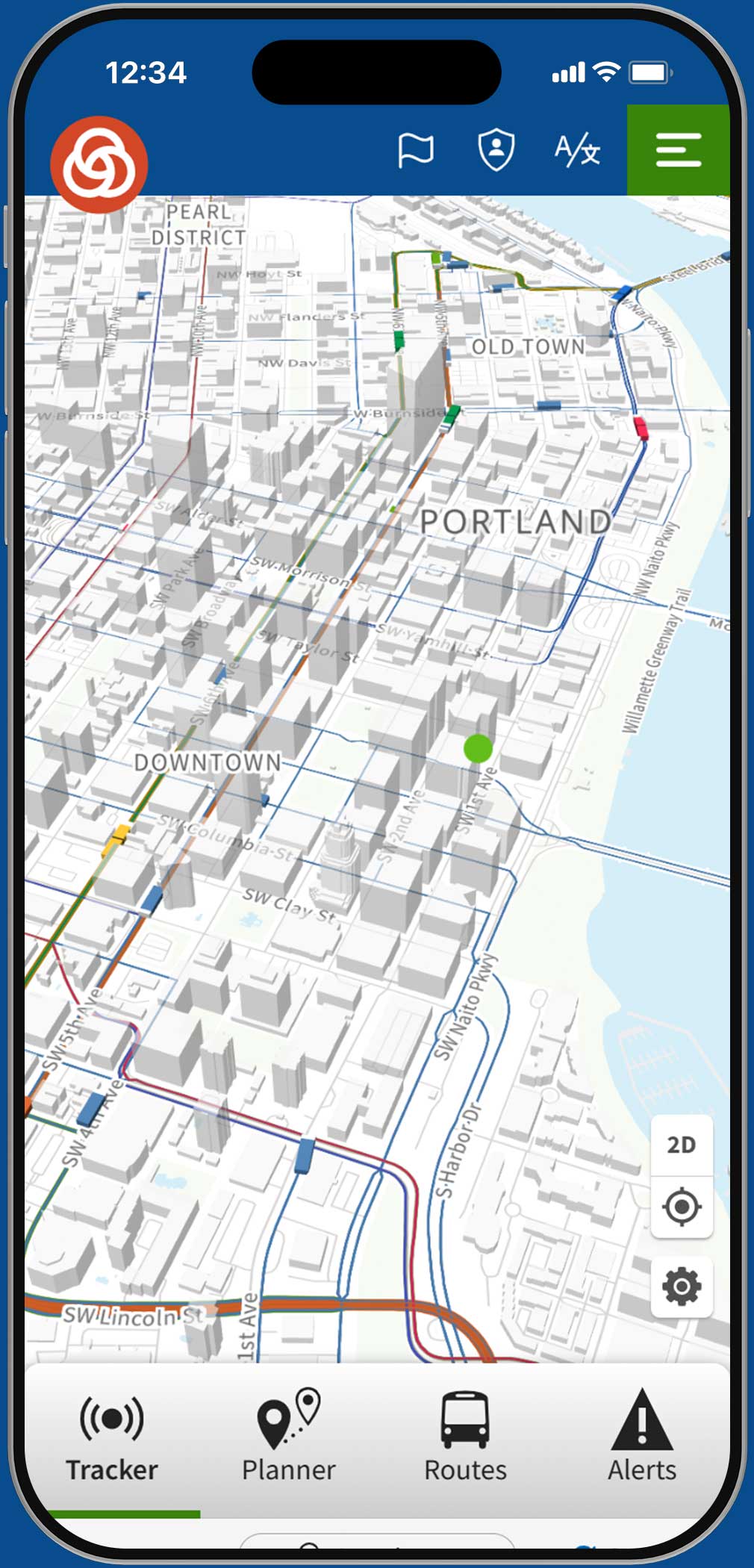
Mind the map
We overhauled the map to improve responsiveness and make it easier to find what you’re looking for.
- The map now loads faster and is more responsive to dragging and zooming, especially on phones.
- You can “tilt” the map for a 3-D perspective view of the area. On desktop and laptop computers, click the “3D” button in the lower-right corner of the map or Control-click and drag on the map to adjust the perspective. On mobile, just two-finger-drag on the map. In 3-D view, you’ll see 3-D vehicles on the map as well.
- Bus and rail route lines are now visible by default on the map (but can still be turned off from the Map Settings screen, if you prefer).
- Route lines on the map are now thicker overall, and have been adjusted for clarity at each zoom level.
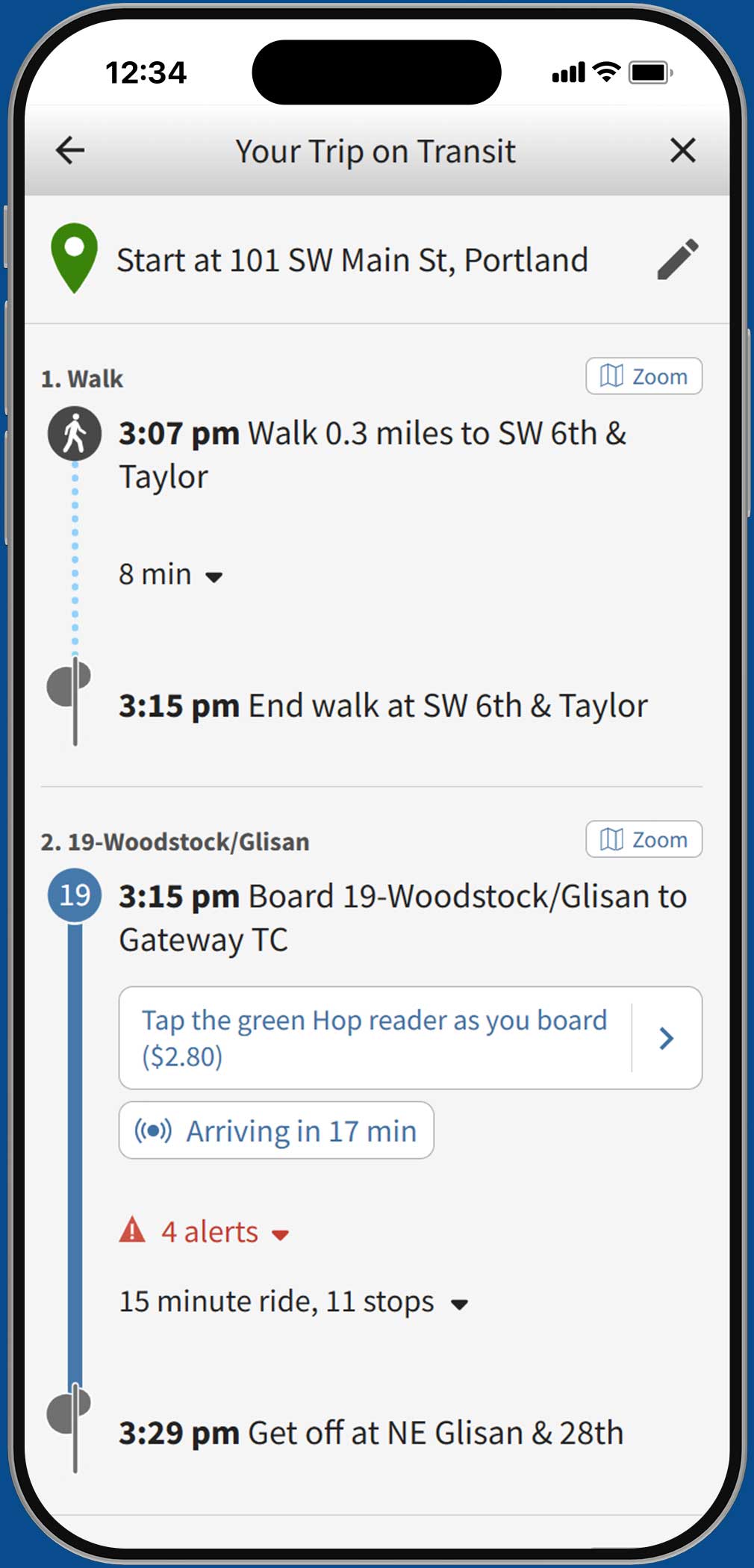
New itinerary design
We heard you – the newly redesigned trip itinerary is easier to read and a lot more useful, thanks to your feedback. Here’s what’s new:
- The itinerary directions now include details on where and when to deboard.
- Text is larger and easier to read, and each step in the directions is numbered, to improve accessibility.
- Origin and destination locations can easily be edited directly from the itinerary.
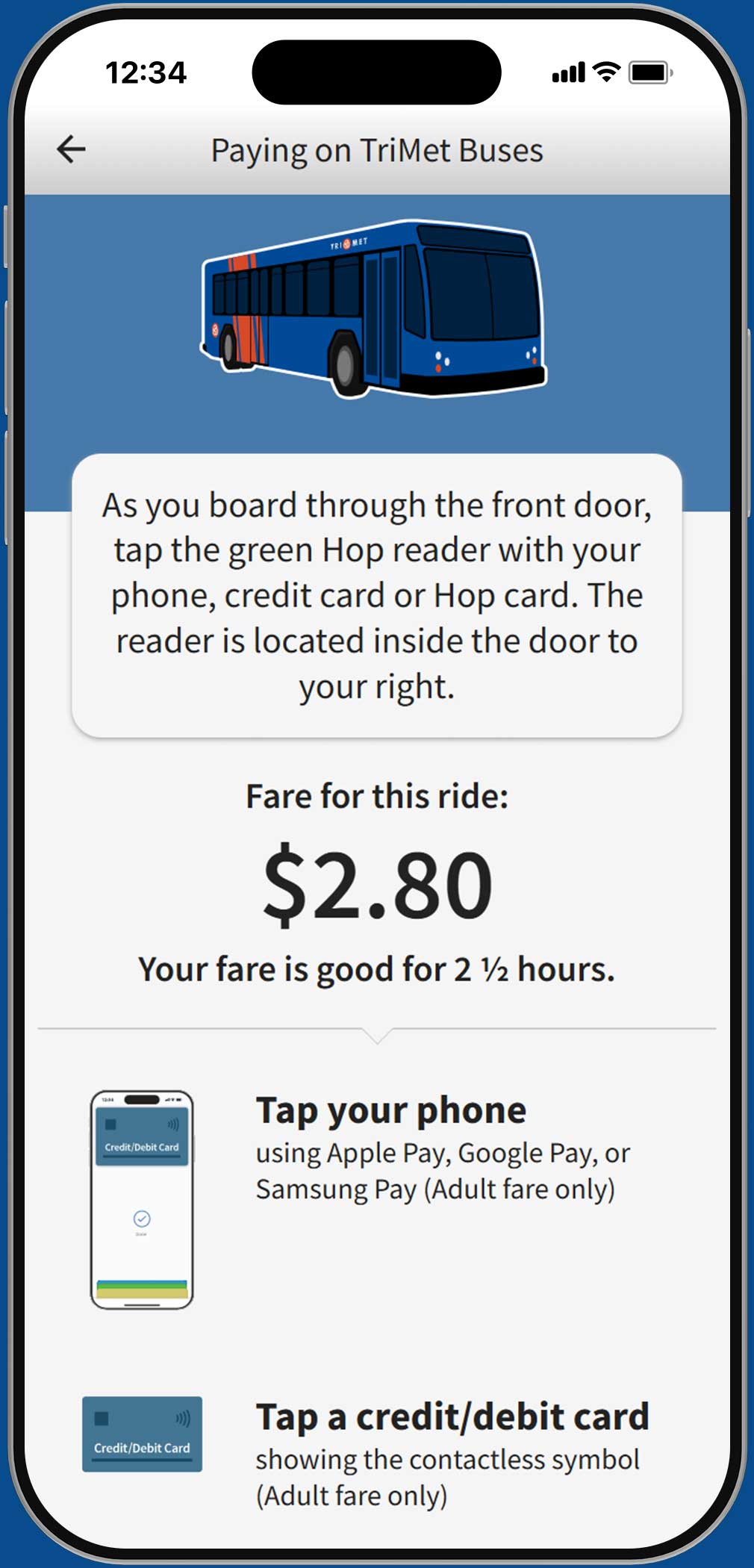
Detailed fare information
We’ve taken the mystery out of fares. Your trip directions now include all the details you need about what each ride costs and how to pay it.
- The Trip Planner now tells you which payment methods are accepted on board, plus when and where to tap the fare reader.
- Not only will it calculate the total cost of your trip, the Trip Planner now shows you the cost of each ride, based on your fare type (Adult, Honored Citizen or Youth), the transfer time you have remaining, and which type of vehicle you’re boarding. This is especially helpful if your trip includes transfers or combines multiple transit services.
Accessibility improvements
We made various accessibility fixes and upgrades to improve the experience for people with visual impairments and people using a screen reader or keyboard navigation.
It’s an app, too: Add a trimet.org shortcut to your home screen
You can easily add a shortcut to trimet.org on your phone’s home screen, so it opens in full-screen mode and behaves more like a traditional app. Here’s how:
iOS (Safari):
- Open trimet.org in Safari
- Tap the “Share” button (square with up arrow) or tap the … menu, then tap “Share”
- Scroll down and tap “Add to Home Screen”
- Keep “Open as Web App” toggled on for a more app-like experience
- Tap Add
Android (Chrome):
- Open trimet.org in Chrome
- Tap the Menu icon (three dots in upper right-hand corner)
- Tap “Add to home screen”
Got feedback?
We continue to improve trimet.org based on feedback from riders. We welcome your questions, comments and suggestions.